
A photo display is often one of the most-visited spots at a funeral or memorial service. Guests gather around it, point out favorite moments, and share stories. The question most families run into when they start is a practical one: how many photos should go on it, and where should they all go?
This guide gives you a clear answer, with approximate photo sizes for a standard 24 x 36 inch poster, ideas for arranging photos so the display tells a story, and tips for getting the best print quality. For other ways to show photographs at a service, such as a memory table or a slideshow, see our guide to displaying pictures at a funeral.
The Short Answer
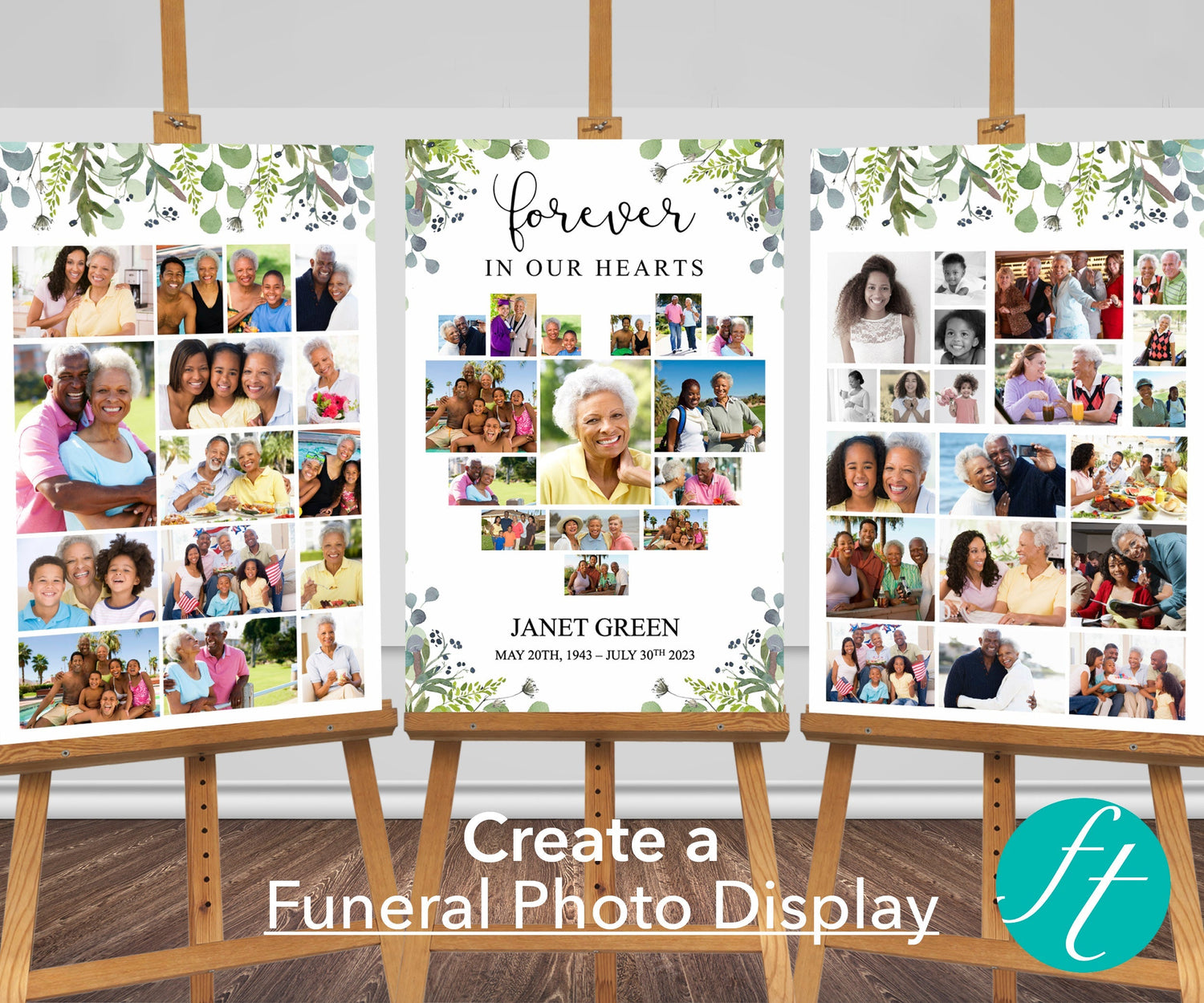
For most services, 30 to 50 photos across a set of three posters works well. That's enough to cover a whole life without making every photo too small to enjoy. Our PowerPoint photo displays are built around this: each set has three 24 x 36 inch posters with space for 50 photos in total, and you can add or delete photo spaces to suit you. If you'd like to include far more photos, the Canva poster bundles have collage layouts for the left and right posters that hold up to 60 photos each, or 120 combined.
How Many Photos Fit on One 24 x 36 Inch Poster?
The more photos you add, the smaller each one becomes. As a rough guide, here's the approximate size of each photo on a single 24 x 36 inch poster, leaving room for a title and a little space between photos:
| Photos on one poster | Approximate size of each photo | Best for |
|---|---|---|
| 1 large photo | Most of the poster | A central portrait |
| 12 | About 6 inches across | A calm, uncluttered look |
| 20 | About 5 inches across | A balance of variety and detail |
| 30 | About 4 inches across | A fuller collage |
| 40 | About 3.5 inches across | Lots of moments, smaller detail |
| 60 | About 3 inches across | A big collage guests look at up close |
These sizes are estimates for square-ish photos and will vary with the layout and the shapes of your photos. Guests will usually stand about 3 to 6 feet from the poster, so photos smaller than about 3 inches across are harder to enjoy from a distance. If you have a lot of photos you love, it's often better to use more posters than to shrink everything to fit.

Choosing the Right Number for Your Service
- A small or private gathering: 20 to 30 photos across two or three posters, or one poster with a larger central portrait.
- A typical service: 30 to 50 photos across three posters.
- A celebration of life or a large gathering: 50 or more photos, using extra posters or the larger collage layouts in the Canva bundle.
There's no right or wrong number. A smaller number of well-chosen photos can feel just as meaningful as a large collage.
How to Arrange the Photos
A display feels more personal when the photos tell a story, instead of being placed at random. A few ideas that work well:
- Follow a timeline. Start with childhood on the left poster, move through adult life in the center, and finish with family and recent years on the right.
- Or group by theme. Family, friends, hobbies, travel, work and favorite places each get their own area.
- Put a portrait in the center. A single large, clear photo of your loved one on the middle poster gives guests a natural focal point. Our Canva poster bundle is designed this way, with a middle poster for a large photo and collage posters on each side.
- Mix photo shapes and sizes. Use a few larger photos for special moments and smaller ones for everyday memories. Combine portrait and landscape photos for a more natural look.
- Keep the look consistent. If you have older photos in black and white, spread them across the display instead of placing them in one block. Photos with similar lighting and tones sit well together.
- Avoid cutting off faces. When you crop a photo to fit a space, check that heads and faces stay inside the frame.

Getting Good Print Quality at Poster Size
Large prints show off photo quality, so it's worth a few minutes of preparation:
- Use original files where you can. Photos taken on a recent phone or camera are usually a good size. Pictures saved from social media, messaging apps or screenshots are often too small and can look blurry when printed.
- Scan older prints at a high resolution. A scan at 300 dpi is a common choice for printed photos you want to enlarge.
- Zoom in to check. View each photo at full size on your screen. If it looks soft or pixelated there, it will look the same on the poster.
- Choose clear photos for the larger spaces. Save slightly softer photos for the smaller spaces.
Setting Up the Display

- Use easels or a table display. Three posters side by side on easels near the entrance or reception area work well.
- Think about height. Aim to have the center of each poster roughly at eye level so guests can see the photos easily.
- Watch the lighting. Try to avoid placing posters where a window or a bright light will create glare on the surface.
- Add a memory table. A table with a few keepsakes next to the posters invites guests to linger, and share a memory cards give them a place to write down a story.
- Pair it with a welcome sign. A matching funeral welcome sign at the entrance gives the display a coordinated look.
Photo Display Templates
These templates take care of the layout, so you only need to add your photos. Browse the full range in our funeral photo display collection.
Classic Funeral Photo Display
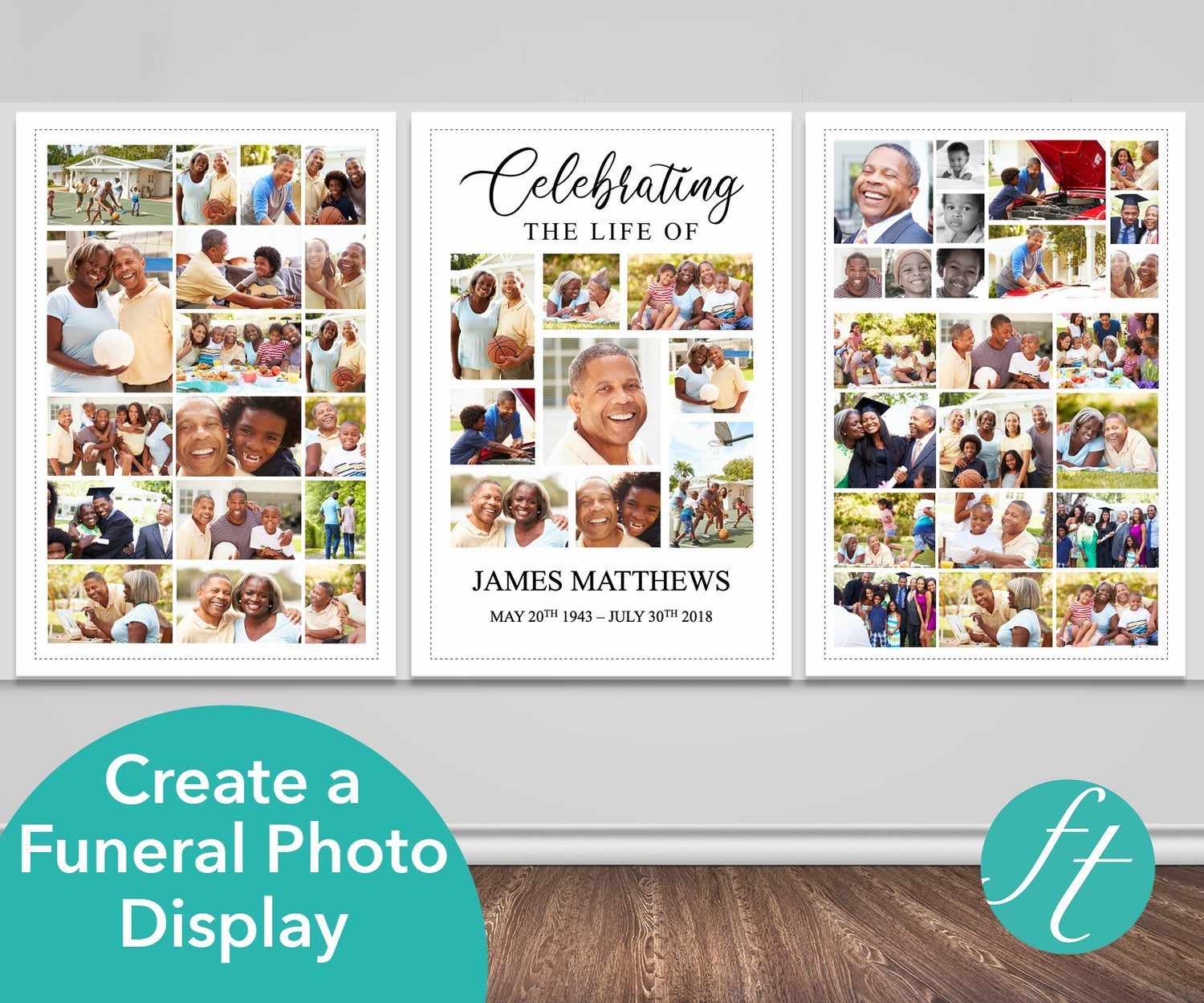
Three coordinating 24 x 36 inch posters with space for 50 photos in total, in a calm, classic design. It's a PowerPoint template for use on a desktop or laptop computer, and you can add or delete photo spaces. View in PowerPoint →

Sky Funeral Photo Display
A gentle sky design with three 24 x 36 inch posters and space for 50 photos, a good fit for celebrating a family member or close friend. It's a PowerPoint template for use on a desktop or laptop computer. View in PowerPoint →

Classic Funeral Poster Bundle (Canva Templates)
Twenty middle poster templates and sixteen photo collage designs for the left and right posters, holding up to 60 photos each (120 combined), in sizes from 12 x 16 up to 24 x 36 inches. Edit it in Canva. View in Canva →
For more on the Canva collage designs, see our guide to creating funeral posters with a Canva photo collage template.
Printing Your Photo Display
A 24 x 36 inch poster is too large for most home printers, so plan to use a local print shop or an online printing service. Save your finished file as a PDF before printing so the layout stays exactly as you designed it. Prints of Love can print and ship your finished design. Many print shops can also mount posters on foam board for easel display, so it's worth asking when you order.
Frequently Asked Questions
How many photos should go on a funeral photo display?
For most services, 30 to 50 photos across three posters works well. Smaller gatherings can use fewer, and larger celebrations of life can use more posters or the larger collage layouts.
How many photos can I fit on one 24 x 36 inch poster?
Anywhere from one large photo to 60 or more. Around 12 to 20 photos keeps each photo about 5 to 6 inches across, which is easy to enjoy from a few feet away.
Can I add or remove photo spaces in the template?
Yes. In both our PowerPoint and Canva photo displays you can add, delete or move photo spaces to suit the number of photos you have.
Do I need to use all three posters?
No. You can use one, two or all three. A single poster with a large central portrait can work well for a small service. If you need more than three, you can also duplicate a poster and print as many extra copies as you like.
What size are the posters?
Our PowerPoint photo displays come as three 24 x 36 inch posters. The Canva poster bundle includes sizes from 12 x 16 up to 24 x 36 inches.
Should I choose PowerPoint or Canva?
Either works. PowerPoint templates need the full version of PowerPoint on a desktop or laptop computer. Canva templates can be edited in Canva, which suits anyone who prefers to work in a browser.
Related reading: How to Display Pictures at a Funeral, Canva Funeral Poster Templates and How to Edit Your Funeral Template


