
A funeral slideshow is often the part of the service people remember most. Guests laugh at a favorite photo, point out faces they recognize, and later ask, "Can I see that again?" Family members who couldn't travel often ask the same thing.
A QR code makes that easy. Guests scan it with their phone and watch the slideshow whenever they like, with nothing to download or hand out. This guide walks you through the whole process, from exporting your slideshow to placing the code where guests will see it.
The Short Answer
To share a funeral slideshow with a QR code, export it as an MP4 video, upload it to a private link such as an unlisted YouTube video or a shared album, paste that link into a free QR code generator, and place the code on the closing slide, in the program or on a small card at the memory table. It takes about 30 minutes once the slideshow is finished. Our PowerPoint slideshow templates and Canva slideshow templates both export as MP4 video, so either one works.
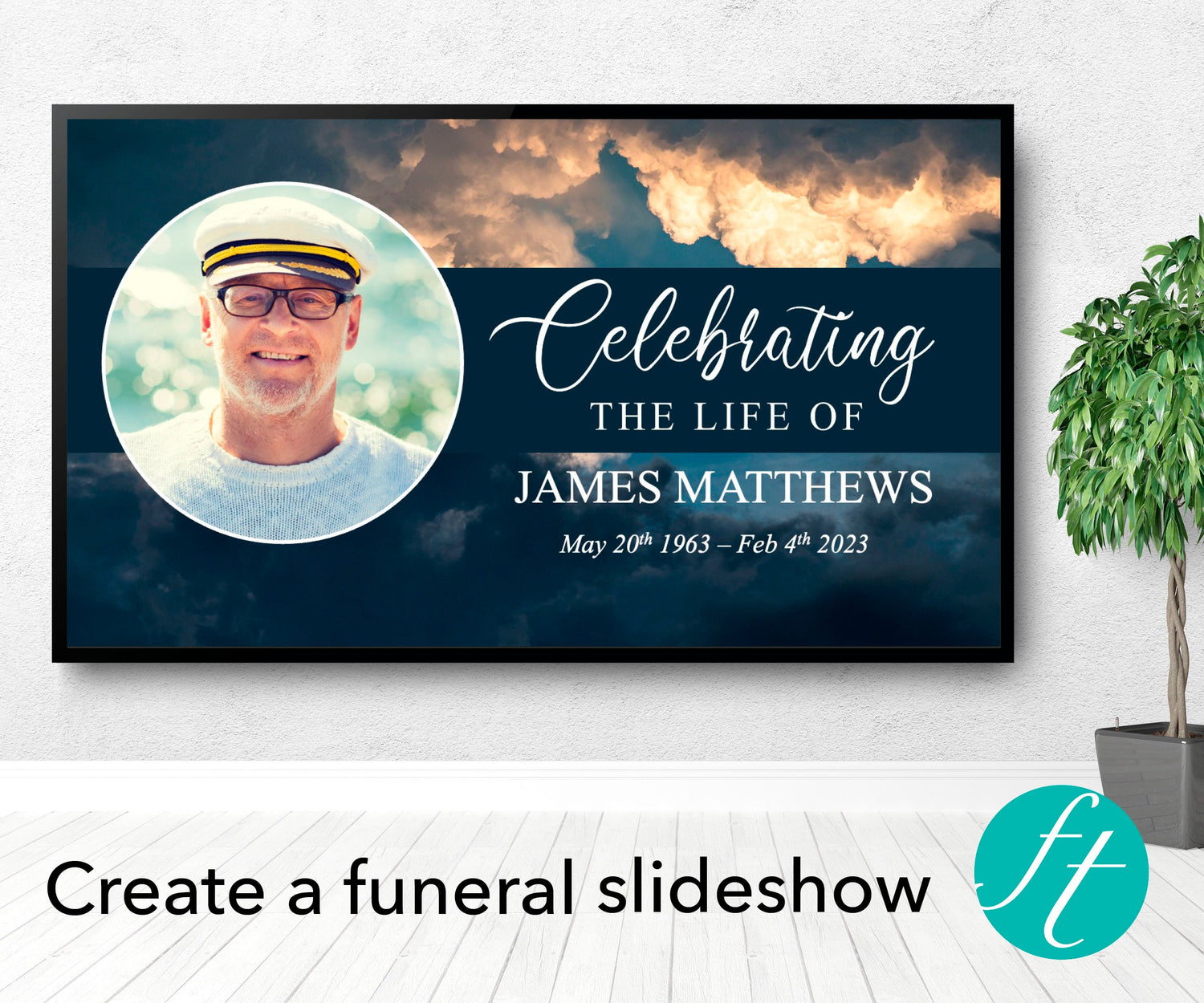
Why Add a QR Code to a Funeral Slideshow?
- Guests can watch again. A slideshow often plays once, or loops quietly at a reception. A QR code lets people watch properly, at their own pace.
- Family and friends who couldn't attend can see it. One link reaches everyone, wherever they live.
- No USB drives or DVDs. You don't need to copy files for anyone.
- It becomes a keepsake. Families often want to revisit the photos in the weeks and months afterward.

How to Share Your Slideshow With a QR Code, Step by Step
1. Finish and export your slideshow as a video
Complete your slideshow first, including photos, music and a closing slide with space for a code later. Then export it as an MP4 video file, which plays on almost any phone, tablet or computer.
- PowerPoint: our PowerPoint slideshow templates can be exported as an MP4 video file once you've finished editing. In PowerPoint, look for the export option under the File menu, then select 'MP4' from the File Format drop down menu before clicking 'Export'. You'll need Microsoft PowerPoint on a desktop or laptop computer to edit these templates.
- Canva: click Share, then Download, then choose MP4 Video before clicking 'Download'. You can edit Canva templates in the free version of Canva on a computer, phone or tablet.
If you haven't finished your slideshow yet, our guides on making a funeral slideshow on PowerPoint and creating a funeral slideshow take you through it.
2. Choose where to upload it
Your QR code will link to wherever the video lives, so choose a place that's easy for guests to open on their phones:
| Option | Best for | Things to know |
|---|---|---|
| Unlisted YouTube video | The simplest option for most families | Anyone with the link can watch, but it doesn't appear in search results. Takes a few minutes to set up. |
| Shared Google Photos album | Sharing the slideshow along with the original photos | Guests can also browse the individual photos. |
| Google Drive or Dropbox link | Families already using these services | Set the link so anyone with it can view, and check it opens without a sign in. |

3. Check the privacy setting and the music
Before you create the code, open the link in a private or incognito browser window, or on a phone that isn't signed in to your account. If you can watch the slideshow there, your guests can too. If you'd rather keep the slideshow private to invited people, choose a setting that lets you control who can view it.
Also play the whole video through once. Some video sites may mute or flag popular copyrighted songs, so it's worth checking the music plays properly before you share the link.
4. Create your QR code
You don't need a paid tool. Canva has a free QR code generator. Choose the static option, paste in your video link, generate the code, and download it as a PNG so you can use it on a slide, a card or a program. We explain this in more detail in our guide to adding QR codes to funeral programs.
5. Test the code
Scan the code with your own phone, and ask a friend or family member to try theirs, ideally one iPhone and one Android phone. Check that it opens the right video and that the video plays with sound. Test it again from a few feet away if it will be on a screen or sign.
6. Place the code where guests will see it
See the next section for the best spots. Whatever you choose, add a short line next to the code, such as "Scan to watch the slideshow", so guests know what it does.

Where to Put the QR Code
- On the closing slide of the slideshow. If the slideshow loops at the reception, the code stays on screen for guests to scan. Because you need the link before you can make the QR code, upload your first slideshow export (for example to Youtube), create the code in Canva, then add it to the closing slide and export a second copy to play at the service. The slideshow copy you uploaded to Youtube doesn't need the code. Make it large, with plenty of empty space around it.
- In the funeral program. A small code on the back page, with a short line of text, works well. Our Canva program templates make it easy to drop in an image.
- On a card at the memory table. Print a small card or two and set them next to the guest book.
- On a thank you card. Including the code in your thank you cards lets people who couldn't attend watch afterward.
- On the welcome sign. If you'd like guests to scan as they arrive, see our guide to adding a QR code to a funeral welcome sign.
If you'd like your cards or program printed professionally, Prints of Love is a popular choice.
Tips for a QR Code That Works Every Time
- Keep the code large and high contrast. Dark code on a plain light background scans best. Don't place it over a busy photo.
- Keep the link live. A static QR code points directly to your link, so don't delete the video or change its sharing settings after printing.
- Add a short line of text. "Scan to watch the slideshow" is clear and kind to guests who aren't sure what the code is for.
- Keep a backup. Save the MP4 file on a USB drive or in a second cloud folder, in case the internet isn't working at the venue.
Slideshow Templates That Export to Video
Here are a few popular slideshow templates, in both PowerPoint and Canva. Each one exports as an MP4 video.

Premium Funeral Slideshow Template in Gold and Black
A polished design with 28 slides and 20 photo collages, with space for over 130 photos. You can add music and video, and play it in PowerPoint or export it as an MP4. It's a PowerPoint template for use on a desktop or laptop computer. View in PowerPoint →

Canva Funeral Slideshow Template with Purple Roses
Thirty slides with 20 photo collages and space for over 130 photos. Add your own music, upload video clips, then download it as an MP4 from Canva's Share menu. You can edit it on a computer or mobile device. View in Canva →

Sky Funeral Slide Show Template
A shorter, simpler slideshow with 13 slides, 7 photo collages and space for over 37 photos. A good fit for a brief tribute. It's a PowerPoint template for use on a desktop or laptop computer, and you can export it as an MP4. View in PowerPoint →
Frequently Asked Questions
Do guests need to download an app to scan a QR code?
Most phones can scan QR codes with the built-in camera, so guests usually just open the camera and point it at the code. Anyone who has trouble can ask someone nearby for help, or you can add the link in writing under the code.
Will the QR code stop working after a while?
A static QR code doesn't expire. It simply points to your link, so it keeps working as long as the video stays online and its sharing settings don't change.
Can I add the QR code to the slideshow itself?
Yes. Upload your first export to Youtube to get the link, create the code in Canva, then add it as an image on your closing slide and export a second copy to play at the service. The code will then appear on screen when the slideshow loops at the reception, and the uploaded copy stays as it was.
Can I keep the slideshow private?
Yes. Choose a sharing setting that lets you control who can view it, and share the link only with the people you choose. Unlisted videos aren't searchable, but anyone who has the link can watch.
Do I need Canva or PowerPoint to make the QR code?
No. Any free QR code generator will do, but Canva's is simple and free. You only need the link to your slideshow.
Related reading: QR Codes for Funeral Programs: Where and How to Add Them, How Do You Make a Good Slideshow for a Funeral? and How to Add a QR Code to a Funeral Welcome Sign


